
Imagine that someone gains access to the email account of the person responsible for finance in your organization. They can read conversations with suppliers, see which invoices are expected, and send messages from an address colleagues trust. For a small business, the consequences can be serious, even with only a handful of employees.
When you ask how you are protected against this, the answer might be: “Everyone has registered MFA.” That is a good starting point. But it only tells you that employees have set up a way to verify their identity. It does not tell you which requirements actually apply when someone tries to access their email.
As a leader, it therefore helps to understand what your security setup does and what you can decide for yourselves. Microsoft offers both a ready-made baseline and tools for tailoring access requirements. The difference is how much control your organization has over what counts as good enough.
What does “everyone has MFA” actually mean?
MFA stands for multifactor authentication. It means that users must verify their identity with more than one type of evidence, such as a password and approval in an app on their phone. A stolen password alone should therefore not be enough to satisfy the sign-in requirement.
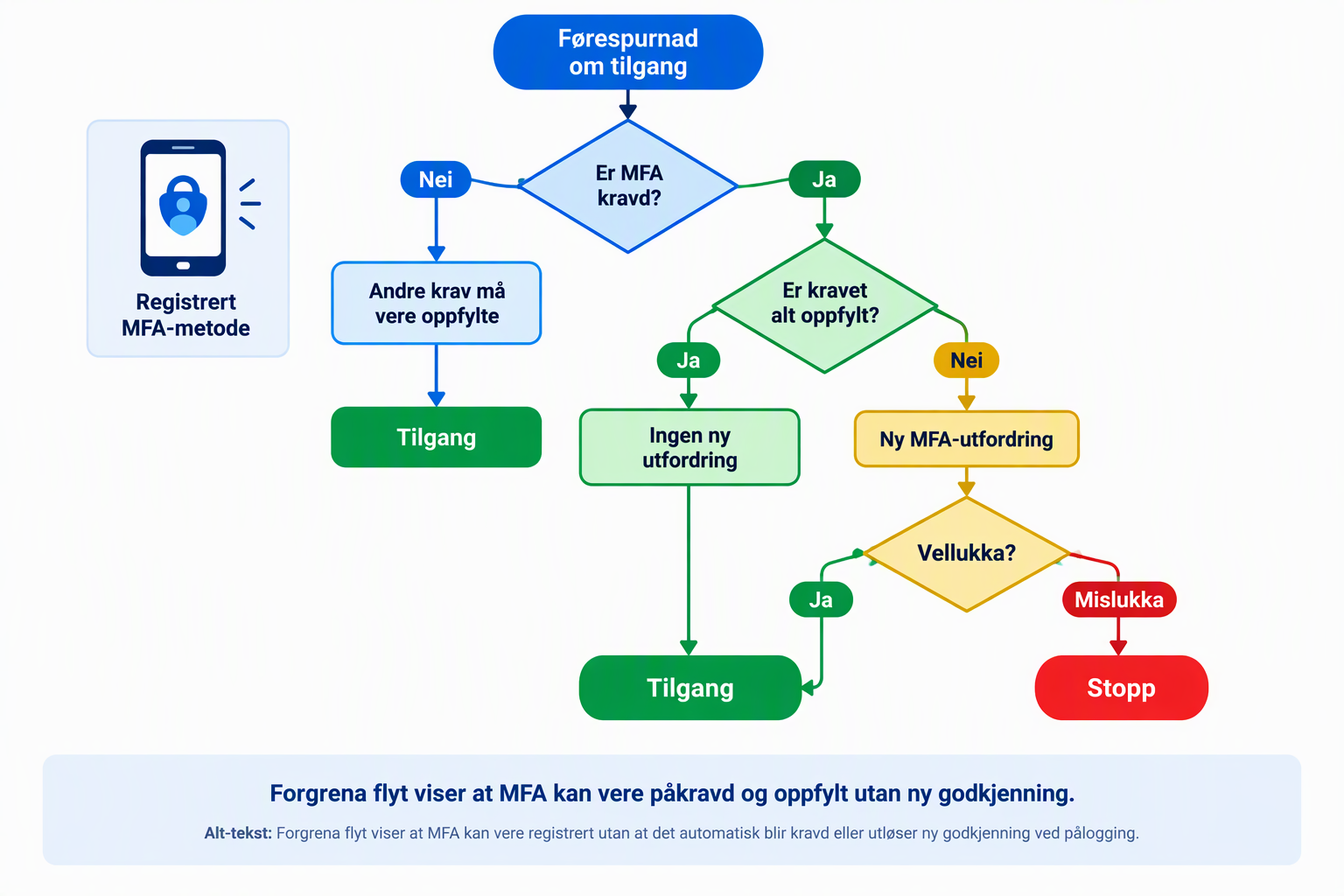
Imagine that your finance colleague has set up Microsoft Authenticator. The method is registered and ready to use. But a rule must also require MFA for the particular access attempt. Finally, the sign-in must actually satisfy that requirement. Registered, required, and satisfied are three different things.
A list showing that everyone has registered a method is therefore not enough to demonstrate how email access is protected. Whoever operates the service needs to examine both the rules and what happens during sign-in.
At the same time, the number of approvals on a phone is not a measure of how effective the protection is. If an employee has recently verified their identity, opening another app may rely on that verification. MFA can therefore be required and satisfied without a new notification on the phone. Sign-in logs, the system’s record of sign-in activity, help IT see which requirements applied and how they were satisfied.
Security Defaults provides a ready-made baseline
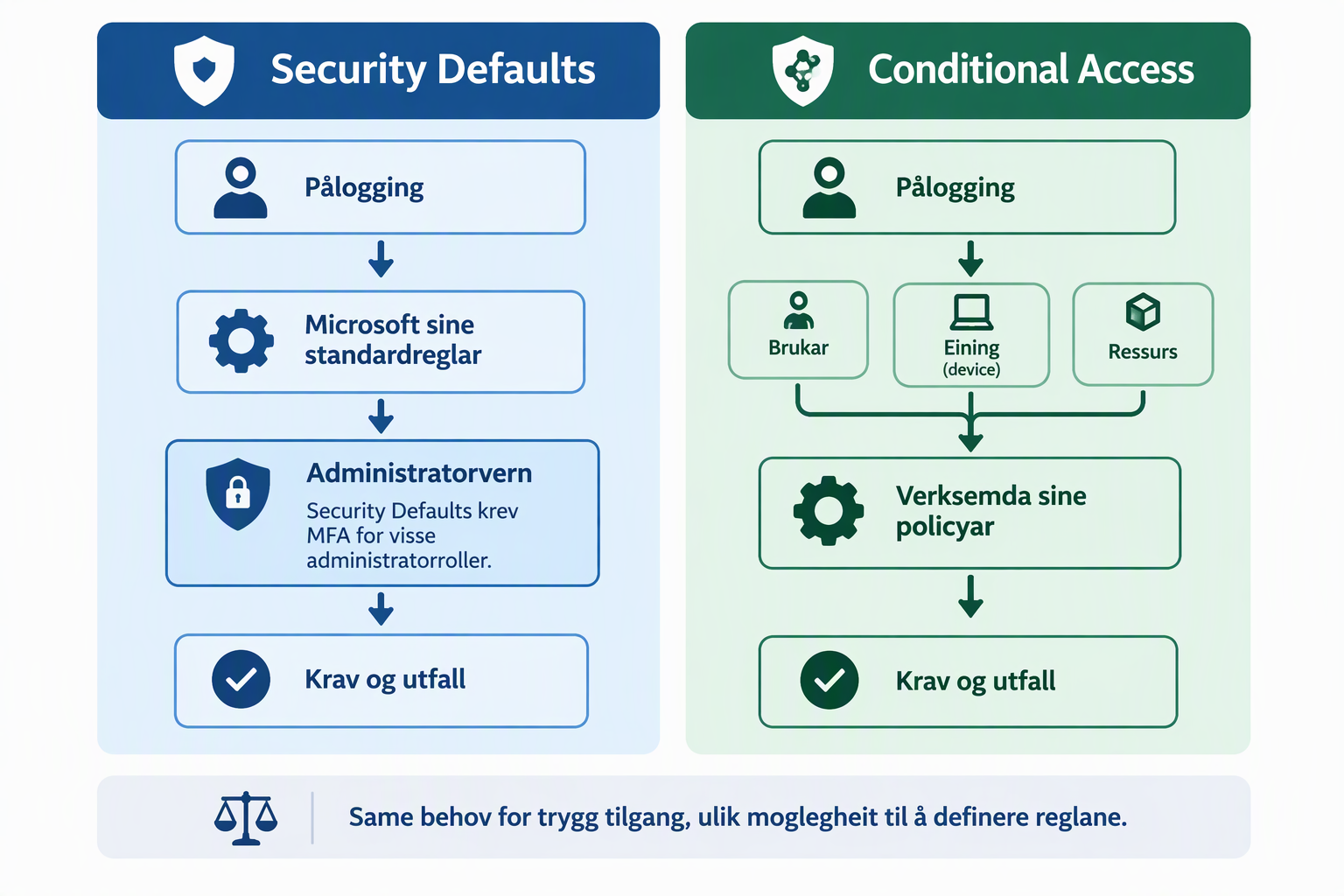
Security Defaults is Microsoft’s preconfigured baseline for protecting your organization’s accounts, available without an additional license charge. Among other controls, it requires users to register for MFA, requires MFA for specific administrator roles, and blocks older sign-in methods that do not support MFA.
For regular users, Microsoft decides when to require MFA, based on factors including location, device, role, and task. This provides real baseline protection, but you cannot customize individual rules in Security Defaults. The configuration is enabled or disabled as a whole.
For an organization getting started, this can be a useful foundation. However, the default configuration does not let you add your own requirements, such as requiring a PC that meets specific security standards to access email. Those needs require a different approach.
Conditional Access lets you define the requirements
Conditional Access is a feature in Microsoft Entra ID, the service that handles identity and access in Microsoft 365. It lets you set rules for who can gain access, which services the rules apply to, and which requirements must be met.
Return to your finance colleague. Your organization can decide that accessing email requires both MFA and a device that meets defined security standards. A personal PC that does not meet those standards would then be denied access under that configuration, even if the user can verify their identity.
This is a specific decision about how to protect business data. It also means planning for employees’ working needs: they need equipment and sign-in methods that actually meet the requirements.
For example, you can use Conditional Access to:
- Require MFA for the users and services you want to protect. Your own policies define the scope, and you can check whether anyone falls outside it.
- Set stronger requirements for administrators. These accounts can change settings and access for many other people. They can therefore be required to use authentication that resists phishing attempts involving fake sign-in pages.
- Require devices to meet your security standards. This depends on a device management service, such as Intune, assessing the device and passing that information to the access control system.
These capabilities also bring responsibility. Policies need to be configured correctly, tested, and maintained. Having Conditional Access included in a license does not by itself demonstrate that the protection is in use or meets your needs.
You may already have the license you need
Conditional Access generally requires Microsoft Entra ID P1 for the users covered by its policies. P1 is included in Microsoft 365 Business Premium. If you have that license, you may already have access to the features needed to set your own MFA and device requirements.
It helps to distinguish between two ways of talking about risk. You can assess the consequences of an email account compromise yourselves and use P1 to set stronger access requirements based on that assessment. You do not need P2 simply because the decision is informed by risk.
However, if you want policies to respond to Microsoft’s automated assessments of user risk or sign-in risk, those capabilities require Entra ID P2. That may be relevant as an additional layer of protection. Your requirements and how the service will be operated should determine what you need.
What should you ask IT or your service provider?
You do not need to know how to configure these policies yourself. As a leader, you can start with the consequences: what would it mean if someone took over an account, accessed customer documents, or sent email in your organization’s name? IT or your service provider can then show how the current protection addresses those concerns.
Ask for a review based on actual working situations. What happens when your finance colleague opens email on a work PC? What happens on a personal PC? And which requirements apply to the person who can change your security settings? Examples like these make it easier to understand your choices and where exceptions exist.
Three questions are particularly useful:
- Which requirements currently apply to our different users and services, and what exceptions do we have?
- Can you demonstrate through tests and sign-in logs that the requirements work as agreed?
- What risk remains, who has accepted it, and who is responsible for maintaining the configuration?
If the review shows that you should move from Security Defaults to Conditional Access, the transition needs planning. Security Defaults must be replaced with active access policies, and Microsoft says these should be enabled immediately after the default configuration is disabled. A policy in report-only mode shows how it would have applied, but does not enforce protection. Agree on testing, the transition itself, and checks afterwards with whoever will carry out the work.
For whoever will carry out the technical review, I have collected tools and written a separate article covering baseline configuration, exceptions, and ongoing maintenance:
Honestly
I think “everyone has registered MFA” is too narrow an answer when a leader asks whether the organization is adequately protected. It says something about preparation, but little about the access requirements that apply in practice.
Security Defaults is an essential foundation when your licenses do not allow for more tailored protection. For organizations with very low risk, it can be a starting point.
But honestly: I believe this is too thin a long-term security baseline for Norwegian small and medium-sized businesses. Having few employees does not mean low risk.
Conditional Access lets you tailor protection to your needs. Ask whoever operates Microsoft 365 to explain what has been chosen, why it was chosen, and demonstrate that it works.